

Slider Interface for Interactive Parameter Changes in QUADOA® Optical CAD
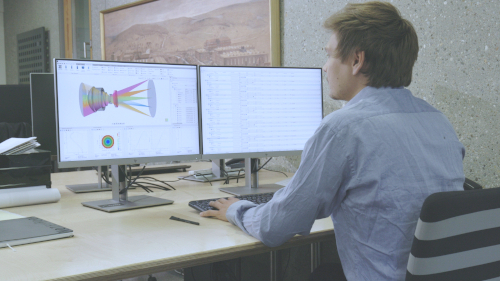
The Slider Interface in QUADOA® Optical CAD lets you change parameters continuously with a slider and see the effect on the system immediately. You define a parameter with a minimum and maximum value and enter its name in the Optical Design Editor instead of a number. In the example, sliding the position of the test object in a Fizeau interferometer changes the interferogram live.
Key points
- Open the Slider Interface via the Windows icon.
- Each slider parameter has a name, minimum and maximum value.
- Enter the parameter name in the Optical Design Editor instead of a number.
- Math expressions calculate values from slider parameters.
- Slider parameters can also drive video recordings.
Terms used in this article
- Slider parameter
- A named parameter with a minimum and maximum value, changed with a slider.
- Math expression
- A formula that calculates a value from parameters.
- Interferogram
- The fringe pattern produced by interfering test and reference beams.
Example: Fizeau interferometer
In the Fizeau interferometer of the video, the X, Y and Z positions of the test object are slider parameters. Moving the slider for X shifts the test object, and the interferogram changes in real time. This gives an intuitive feel for how sensitive the system is to each parameter.
How to add a slider parameter
- Click the Windows icon and choose Slider Interface.
- Click Add Slider and give the parameter a name, for example
parameter. - Enter the minimum and maximum value, for example −0.02 and +0.02.
- In the Optical Design Editor, enter the parameter name instead of a number, for example as position X.
- Move the slider. The parameter changes between minimum and maximum, and the 3D view and plots update.
How to use math expressions in the Slider Interface
Slider or multi-config? Sliders are meant for interactive, continuous changes, for example to get a feel for which parameter affects what. To optimize a system for several discrete states, use the multi-config lookup table instead. Sliders are only available in the user interface and cannot be moved from the scripting interfaces.
- Click the button to add a math expression and give it a name, for example
math. - Enter the formula using the slider parameters, for example the square of
x. - Enter the name
mathin the Optical Design Editor, for example as position X.
A math expression may use sliders and other math expressions defined in rows above it. This makes it possible to describe dependent movements analytically, for example the movement of several lens groups in a zoom lens driven by one slider. The available functions are the same as in the multi-config lookup table.
The value is now calculated from the expression. Sliders are also useful to rotate elements around pivot points and to animate video recordings.
Video tutorial: the Slider Interface
This 4-minute video shows the Slider Interface with a Fizeau interferometer, including parameters and math expressions.
Video length: 3:31 min · Also on YouTube: Slider Interface in QUADOA® Optical CAD
Frequently asked questions
Open the Slider Interface, add a parameter with a name, minimum and maximum, enter its name in the Optical Design Editor and move the slider.
Yes. Use math expressions that calculate values from the slider parameters and enter their names wherever needed in the Optical Design Editor.
Yes. The 3D view and open plots, such as an interferogram, update as the slider moves.
Yes. The Slider Interface has a Record Video function that moves the slider automatically during recording.
Use sliders for interactive, continuous exploration. Use the multi-config lookup table for discrete states that should be optimized together, such as zoom positions.