
Multi-Configuration Lookup Table in QUADOA® Optical CAD
In QUADOA® Optical CAD, multi-configurations are set up by entering named parameters instead of numbers in the Optical Design Editor and defining their values per configuration in the multi-config lookup table. Switching the configuration inserts the corresponding values. Simple parameters, which hold one value for all configurations, and math expressions, which calculate values from other parameters, replace the pickups known from other optical design programs. The example is a two-position zoom lens.
Key points
- Enter a parameter name instead of a number in the Optical Design Editor, for example
Z_lens. - The multi-config lookup table holds one value per parameter and configuration.
- Add configurations with right-click → Add Config or the corresponding icon.
- Simple parameters share one value across the model, math expressions calculate values from other parameters; together they replace pickups.
- The whole system can be optimized for all configurations at once; variables can be activated per configuration.
- Open the table via Windows → Multi Config Lookup.
Terms used in this article
- Configuration
- One state of the system, for example one zoom position.
- Multi-config lookup table
- The table with the value of each parameter in each configuration.
- Pickup
- In other optical design programs, a value copied or derived from another value. In QUADOA®, math expressions take this role.
How do multi-configurations work in QUADOA®?
Instead of a numerical value, you enter a parameter name in the Optical Design Editor. The multi-config lookup table lists each parameter with its value in every configuration. When you switch the configuration, QUADOA® inserts the matching values.
To open the table, click the Windows icon and choose Multi Config Lookup.
If the name is found, the current value is shown in brackets next to it. If the name does not exist in a lookup table, the item is highlighted in red and an error message appears. Parameter names must start with a letter and may contain letters and numbers.
Which parameter types does the lookup table offer?
| Type | Value | Typical use |
|---|---|---|
| Multiconfig Parameter | One value per configuration | Moving lens groups in a zoom lens, scanning mirror positions |
| Simple Parameter | One value for all configurations | Several model values that must always be equal, for example in parametric models; the direct replacement for pickups |
| Math Expression | Calculated from parameters in rows above | Values that depend on other values |
| Thermal Expansion Length | Length that changes with a temperature parameter | Thermal expansion of mounts, see thermal analysis |
| Comment | Free text | Documenting the table |
Multiconfig and simple parameters can be set as optimization variables. For parameters from the lookup table, the variable icon moves from the Optical Design Editor into the table, where it can be activated separately for each configuration.
Example: zoom lens with two configurations
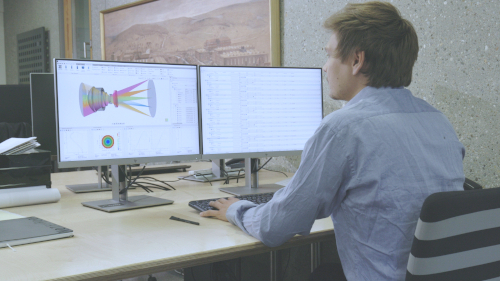
In the zoom lens of the video:
- The position Z of an assembly is the parameter
Z_lens. - The position of the imaging surface is the parameter
Z_camera.
The lookup table holds one value of Z_lens and Z_camera for configuration 1 and another for configuration 2. Switching between the configurations moves the lens group and the camera to the stored positions.
How to add a configuration
- In the multi-config lookup table, right-click and choose Add Config, or click the add-config icon.
- Enter the parameter values for the new configuration.
You can now switch between all configurations, for example three zoom positions: with the next/previous config buttons, by clicking a column header in the table, or with the spin box in the corner of the 3D view. To see several configurations at once, use Show/Hide Multi configuration in the 3D view, which overlays all configurations or draws them side by side.
Multi-config or slider? Use the multi-config lookup table when the system has a few discrete states that should be optimized together. To simply explore a continuously moving parameter, the Slider Interface is usually the better choice.
How to use math expressions (replacement for pickups)
- Click the math expression icon in the lookup table.
- Give the expression a name, for example
x. - Enter the formula, using functions and parameters, for example a sine or a square of
Z_camera. - Enter the name
xin the Optical Design Editor, for example as the position of the imaging surface.
Math expressions support numbers and constants (such as pi), the basic operators + - * / ^, functions such as abs, exp, log, sqrt, root, min, max, all common trigonometric and hyperbolic functions, rad2deg/deg2rad, logic and comparison operators, and conditions such as if((x<2), 1, sin(y)). An expression may only use parameters defined in rows above it.
The value is now calculated from the expression in every configuration. This replaces pickups: any value can be derived from any other parameter with a formula. Parameters and expressions also make a design fully parametric, as in the off-axis telescope example, and they are used for temperatures in thermal analysis.
Video tutorial: the multi-config lookup table
This 3-minute video shows the multi-config lookup table with a zoom lens, including new configurations and math expressions.
Video length: 3:26 min · Also on YouTube: Multi Config (Replacement for Pickups) in QUADOA® Optical CAD
Frequently asked questions
Enter parameter names instead of numbers for the moving positions in the Optical Design Editor, open the multi-config lookup table and enter the value of each parameter for every configuration.
QUADOA® uses lookup parameters instead. A Simple Parameter holds one value that several model parameters share, and a math expression can calculate any value from other parameters, which covers and extends what pickups do.
Right-click in the multi-config lookup table and choose Add Config, or click the add-config icon, then enter the values.
Click the Windows icon and choose Multi Config Lookup.
Yes. For lookup parameters, the variable state is set in the multi-config lookup table separately for each configuration.