
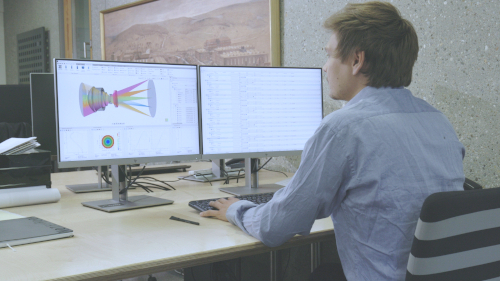


How to Create a Singlet Lens in QUADOA® Optical CAD
In QUADOA® Optical CAD, a singlet lens is created with the Singlet Lens Wizard in the Construction tab. You enter the two radii, the thickness, the aperture radius and the material, and the lens appears in the 3D view and in the Optical Design Editor. This tutorial walks through each field of the wizard and shows how to select a glass from the material catalog.
Key points
- Lens wizards for singlet, doublet and triplet lenses are in the Construction tab under Basic Elements.
- The wizard shows a live preview of the lens next to the input fields.
- Materials can be typed in or selected from the material catalog, filtered by index, Abbe number and other properties.
- New lens surfaces are spherical by default until you add another form.
Terms used in this article
- Lens wizard
- A dialog that creates a complete lens element from a few parameters, with a live preview.
- Identifier name
- A unique name for an element, used to find it in the Optical Design Editor.
- Optical Design Editor
- The editor that lists all elements, surfaces and parameters of the optical system.
How to open the Singlet Lens Wizard
- Go to the Construction tab at the top.
- Under Basic Elements, choose the lens wizard you need: Singlet, Doublet or Triplet.
- The wizard opens with the input fields on the left and a preview of the lens on the right.
Which parameters define a singlet lens?
| Field | Meaning |
|---|---|
| Identifier Name | A unique name of your choice for the lens |
| Radius 1 | Radius of the first (left) surface |
| Radius 2 | Radius of the second (right) surface |
| Thickness | Center thickness of the lens; in the Optical Design Editor it is the Z position of the second surface |
| Aperture Radius | Aperture radius of the lens surfaces |
| Material 1 | Lens material, typed in or selected from the material catalog |
The Doublet and Triplet wizards work the same way, with one more radius, thickness and material for each cemented part (for example Radius 1–3, Thickness 1–2 and Material 1–2 for a doublet).
Tip: If an assembly is selected when you click OK, the lens is inserted into the local coordinate system of that assembly; otherwise it is placed in the global coordinate system.
How to choose a material from the catalog
- In the wizard, open the material catalog search next to the Material field.
- Browse the materials of the different manufacturers, filter them by refractive index or Abbe number, or search by name. Besides optical glasses, the catalog contains common optical polymers and liquids. Each entry shows index and Abbe number as a small bar chart, and an Abbe diagram view lets you pick a material directly from the plot.
- Select the material, for example F2 from SCHOTT, and click Insert Material.
- Click OK in the wizard. The lens appears in the 3D view.
How to find the lens in the Optical Design Editor
- Click the Windows icon at the top and choose Optical Design Editor.
- Find the lens by its identifier name and expand it.
The editor shows the material, the radius of each surface and the aperture radii. The surfaces have a spherical (or planar) form, a circular aperture and no coating, which is the default for every new surface. Without a coating, reflection and transmission are calculated with the Fresnel equations. To use an asphere or freeform instead, add a different form, as shown in Surface Form Stack Ability.
Video tutorial: creating a singlet lens
This 2-minute video shows how to create a singlet lens with the Singlet Lens Wizard and find it in the Optical Design Editor.
Video length: 2:19 min · Also on YouTube: Lens Construction in QUADOA® Optical CAD
Frequently asked questions
Open the Construction tab, choose the Singlet, Doublet or Triplet wizard under Basic Elements, enter the radii, thickness, aperture radius and material, and click OK. The lens appears in the 3D view and in the Optical Design Editor.
Open the material catalog from the Material field of the lens wizard, filter by refractive index, Abbe number or other properties, select the glass, for example F2 from SCHOTT, and click Insert Material.
New surfaces are spherical or planar by default, with a circular aperture and no coating. Other forms, such as aspheres or freeforms, can be added afterwards.
Yes. Copy the material catalog file into the glass folder of the QUADOA® installation; the file format is described in the manual.
Click the Windows icon at the top of the program and choose Optical Design Editor.