
Optical Design Editor Filters in QUADOA® Optical CAD
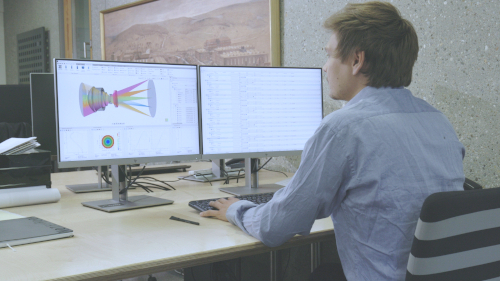
The Optical Design Editor in QUADOA® Optical CAD shows all core components of the optical system in one place: lenses, surfaces, materials and even mechanical parts. Because you rarely work on all of them at once, filter buttons at the top of the editor hide the element types you don’t need. Together with the compact view and the off-axis toggle, they keep the editor clean and focused.
Key points
- The filter buttons are at the top of the Optical Design Editor.
- Filters hide materials, coatings, mechanical parts, scattering or all surface properties at once.
- The compact view shows parameter titles once above the table instead of above every cell.
- Off-axis parameters are hidden by default and shown with the off-axis arrows.
Terms used in this article
- Optical Design Editor
- The editor for all elements of the optical system, including lenses, surfaces, materials and mechanical parts.
- Surface properties
- Items attached to a surface, such as forms, coatings and scatter models.
- Off-axis parameters
- Parameters for decentering, tilting and pivot points of an element.
Why filter the Optical Design Editor?
The Optical Design Editor lets you configure and edit all core components of your optical system. Its advantage is a complete overview of all system parameters in one place. Filtering out the elements you are not working on gives a clean, compact view with only the parameters you need at the moment.
Which filters are available?
The filter buttons are located at the top of the Optical Design Editor. Click a button to hide the element type, and click it again to show it.
| Filter | Hides |
|---|---|
| Filter Material | All lens materials |
| Filter Coating | All coatings |
| Filter Mech | All mechanical parts |
| Scattering | Scatter models, for example Gaussian scatter |
| Filter Surface Property | All surface properties at once: forms, phases, apertures, coatings and polarization elements |
Normal view and compact view
On the left of the filter bar you switch between two layouts:
- Normal (enlarged) view: the title of each parameter is shown directly above its cell.
- Compact view: the title of a cell is shown at the top of the tree view when you click into its row, so more parameters fit on the screen.
Two more icons unfold or collapse the complete tree at once. Inside the tree, the Space key toggles whether the selected parameter is an optimization variable.
Model-wide actions in the same menu bar
Next to the filters, the menu bar holds actions for the whole model: Lock all Apertures and Unlock all Apertures, Convert Position, Convert or Import Form, Convert Material, Scale System and Clean System (removes unnecessary surface properties).
How to show off-axis parameters
Off-axis parameters are hidden by default. Click the off-axis arrows to show them; you can then enter and edit them. They include Pos X, Pos Y, Rot X, Rot Y, Rot Z, the rotation order and the pivot point. As soon as one of them is not zero, they are shown automatically and cannot be hidden. They are needed, for example, to define pivot points.
Video tutorial: Optical Design Editor filters
This 2-minute video shows all filter buttons and view options of the Optical Design Editor.
Video length: 2:13 min · Also on YouTube: Optical Design Editor Filters in QUADOA® Optical CAD
Frequently asked questions
Click the Mechanical Elements filter button at the top of the Optical Design Editor. Click it again to show them.
Yes. The Filter Surface Property button hides all surface properties, such as forms, phases, apertures, coatings and polarization elements, with one click.
In the compact view, parameter titles are shown once above the table instead of above every cell, so more parameters fit on the screen.
Off-axis parameters are hidden by default. Click the off-axis arrows in the Optical Design Editor to show them. If any of them is not zero, they are shown automatically.