
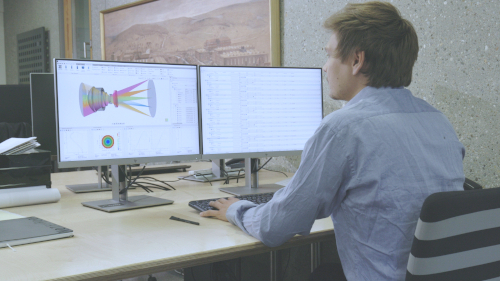


Ray Tracing Basics in QUADOA® Optical CAD: Source, Lens and Image Surface
To trace rays through a lens in QUADOA® Optical CAD, the system needs a source surface where the rays start and an imaging surface where they end. With the default Auto Sequence, rays are traced through all surfaces in the order they appear in the Optical Design Editor, from top to bottom. This tutorial adds both surfaces to a singlet lens and explains how the sequence works.
Key points
- Add surfaces with a right-click → Add Surface in the Optical Design Editor or with the Surface icon in the Construction tab.
- Reorder surfaces by drag and drop; the order defines the ray path.
- New surfaces start at Z = 0; move them along Z to separate them.
- The Auto Sequence is the default: rays start at the first surface and run top to bottom through the system.
- The active sequence is shown in System Setup → Sequences.
Terms used in this article
- Source surface
- The surface where the rays start.
- Imaging surface
- The last surface of the system, where the rays end and the image is formed.
- Sequence
- The order of surfaces that the rays pass through.
- Auto Sequence
- The default sequence in QUADOA®: all surfaces from top to bottom of the Optical Design Editor.
How to add a source surface
- Open the Optical Design Editor via the Windows icon.
- Right-click and choose Add Surface.
- Rename the surface, for example to
Source. - Drag and drop it above the lens, to the very first position.
- Because the lens and the source are both at Z = 0, move the lens along Z, for example by 30 mm.
The rays now start at the source surface and travel to the lens.
How to add an imaging surface
- Add another surface, either with a right-click or with the Surface icon in the Construction tab.
- Rename it, for example to
Imaging Surface, and make sure it is the last entry. - Move it along Z, for example by 30 mm, so it sits behind the lens.
The rays now run from the source surface through both lens surfaces to the imaging surface.
How does the Auto Sequence trace the rays?
With the Auto Sequence, the default in QUADOA®, rays start at the first surface in the Optical Design Editor and pass through every surface from top to bottom, ending at the last surface. In this example:
- Source surface
- First surface of the lens
- Second surface of the lens
- Imaging surface
What the Auto Sequence does at each surface
- Rays are transmitted at uncoated surfaces.
- If a surface has a coating with a reflectance above 50 %, for example a mirror coating, the rays are reflected.
- At surfaces with a phase function, the first diffraction order is used.
- Between two surfaces that do not belong to the same element, the medium is air at the temperature and pressure of the environment. To cement two lenses without an air gap, use a doublet or another n-let lens.
Every new file already contains an Auto Sequence. To change the default behavior, for example to trace a surface twice or choose reflection, convert it to a User Sequence with a right-click or the To User Sequence button in the Sequence tab.
To check which sequence is active, click the Windows icon, open System Setup and look under Sequences. For systems with several light paths, QUADOA® also supports user-defined sequences and multi-sequential ray tracing; see the off-axis telescope example.
Video tutorial: ray tracing basics
This 3-minute video shows how to add source and imaging surfaces and trace rays through a singlet lens.
Video length: 3:09 min · Also on YouTube: Ray Tracing Basics in QUADOA® Optical CAD
Frequently asked questions
The system needs a source surface before the lens, where the rays start, and the surfaces must be separated along Z. Add a surface, move it to the first position and shift the lens along Z.
With the default Auto Sequence, rays are traced from the first to the last surface in the order of the Optical Design Editor, from top to bottom.
Drag and drop the surface to a new position in the Optical Design Editor.
Open System Setup via the Windows icon and look under Sequences.
When a surface has a coating with a reflectance above 50 %, such as a mirror coating. Otherwise rays are transmitted; for full control, convert the Auto Sequence to a User Sequence.