
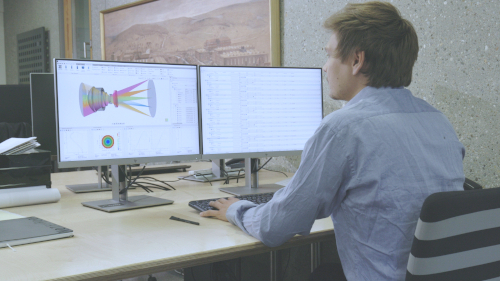


How to Speed Up Computation and the User Interface in QUADOA® Optical CAD
QUADOA® Optical CAD re-traces the rays in the 3D view and updates every open plot whenever you change the design. This direct feedback is intuitive, but with large systems or computationally intensive plots it can slow down the user interface. This article shows five settings that make QUADOA® faster without changing your results.
Key points
- Turn off the global auto update in the quick access toolbar and update plots manually.
- Or turn off auto update only for heavy plots, such as the point spread function.
- Keep the number of rays in the 3D view low; it does not affect the analysis plots.
- Hide sequences, fields and wavelengths you are not working on; hidden sequences are still used in the analyses.
- In ghost analysis, use Hide All Ghosts or the Hide Ghost option of the Ghost Wizard.
Terms used in this article
- Auto update
- Automatic re-tracing of the rays and refresh of all plots after every change to the design.
- Quick access toolbar
- The toolbar with frequently used buttons, including the global auto update button.
- Ghost
- A stray light path caused by unwanted reflections at optical surfaces.
Why does QUADOA® slow down when I change a parameter?
As soon as you edit a parameter or add an element, QUADOA® traces the rays visible in the 3D view and updates all open plots. How long this takes depends on your CPU and on the plots that are open. The advantage is immediate feedback on every change.
Solution 1: Turn off the global auto update
- Click the global auto update button in the quick access toolbar to deactivate it.
- Change your design as usual. Plots are no longer refreshed automatically.
- Click the Update button in the quick access toolbar (shortcut F5) to refresh all open plots at once, or the update button of a single plot.
Note: Plots whose own auto update is switched off are not refreshed by the global update; update them with their own button.
Solution 2: Turn off auto update only for heavy plots
Usually only a few plots are slow, for example the point spread function.
- In the computationally intensive plot, deactivate its own auto update.
- Activate the global auto update again.
All other plots keep updating automatically; the heavy plot is updated manually.
Even faster: double-click a plot in System Setup → Plots to make it invisible. Invisible plots are grayed out and use no CPU at all, and their settings are kept. Double-click again to show them.
Solution 3: Show fewer rays in the 3D view
The number of rays in the 3D view is independent of the number of rays used for the analysis plots. A few rays are usually enough to see the ray path.
- Open System Setup and select the source of the sequence.
- Under Distribution, set the number of rays, for example to 5.
With 5 or 15 rays the difference is small, but with thousands or millions of rays it has a large impact.
Solution 4: Hide sequences, fields and wavelengths
Hidden sequences are not traced when the 3D view updates. They are still included in the analysis plots, so hiding them does not change your results.
Recommendation: set only the sequences, fields and wavelengths you are currently working on to visible, for example hide one of three fields.
Solution 5: Hide ghosts during ghost analysis
- In the Sequence tab, click Hide All Ghosts to hide existing ghost sequences.
- When creating ghosts with the Ghost Wizard, check Hide Ghost, so new ghost sequences are hidden right away.
This is recommended for large systems with many surfaces, which generate a large number of ghost paths. In the Ghost Wizard you can also set the Ray Count to Minimal, which creates the ghost sequences with a minimal XY fan of rays. The ray count only affects the 3D view; ghost analysis plots use their own number of rays.
Video tutorial: enhancing computing and GUI performance
This 4-minute video shows all settings described in this article for faster computation and a more responsive user interface.
Video length: 4:15 min · Also on YouTube: Enhance Computing and GUI Performance in QUADOA® Optical CAD
Frequently asked questions
After every change, QUADOA® re-traces the rays in the 3D view and updates all open plots. Large ray counts, many visible sequences or heavy plots such as the point spread function make this slower.
Deactivate the global auto update in the quick access toolbar and refresh plots manually with the update button, or deactivate auto update only in slow plots.
No. The number of rays in the 3D view is independent of the rays used in the analysis plots, so reducing it only makes the display faster.
Yes. Hidden sequences are not traced for the 3D view, but they are still considered in all analysis plots.
Hide all ghosts in the Sequence tab, or check Hide Ghost in the Ghost Wizard so new ghost sequences are created hidden. Setting the Ray Count in the Ghost Wizard to Minimal reduces the rays shown in the 3D view further.
No. A plot made invisible with a double-click in System Setup under Plots is grayed out and uses no CPU, while its settings are kept.