
Python Scripting Interface in QUADOA® Optical CAD
All algorithms of QUADOA® Optical CAD are contained in a core library that can be called directly from Python, completely independent of the user interface. Any model (*.optx) can be loaded, changed and analyzed: parameters, sequences, ray traces, PSF and MTF, ghost images and optimization. The Python Wizard creates ready-to-run scripts from templates, which run from the GUI or stand-alone in any Python environment.
Key points
- Create scripts with the Python Wizard in the Setup tab.
- Templates include a blank script, spot diagram, point spread function and ghosts.
- Run scripts with Run in QUADOA®, or without the GUI from any Python environment.
- Set the path to your Python installation in the global settings under Python.
- Add your own templates as
.qpytfiles in thescripttemplates/pythonfolder. - Requires the Scripting Interface toolbox (Python, MATLAB® and C++ SDK).
Terms used in this article
- QuadoaCore
- The core library object through which a script accesses all QUADOA® functions.
- Python Wizard
- A dialog that creates a script for the current model from a template.
- Script template
- A Python file (.qpyt) used as a starting point for new scripts.
How to set up Python for QUADOA®
- Install the QUADOA® Python module into your Python environment with pip:
pip install /path/to/quadoa-python-wrapper.whl. Supported Python versions are listed in the Download Center. - If scripts do not start with the Run button, set the path to your Python installation (and optionally to your Python editor) in the global Settings under Python.
- The function reference is available under Help → Python Help.
How to create a script with the Python Wizard
- Open the Python Wizard in the Setup tab.
- Choose a template from the drop-down menu, for example Spot Diagram or Point Spread Function, and click OK.
- Save the script in the folder of the model; only scripts there are available under the Run button.
- The script runs and shows its result, for example the spot diagram or PSF plot.
What does a blank script contain?
A blank script contains the basic structure every QUADOA® script needs:
- Import of the QUADOA® module and libraries such as NumPy and Matplotlib.
- Allocation of a
QuadoaCoreobject. - Loading of the materials used in the model and of the model itself.
From there, scripts can view and change design and sequence parameters, run ray traces, compute PSF and MTF, simulate ghost images, run optimizations and read ray, wavefront and surface data.
How to run scripts without the user interface
The scripting interface is independent of the graphical user interface. You can close QUADOA® and run a script from any Python environment or IDE, for example Visual Studio; the spot diagram is computed and plotted without the GUI. This makes Python ideal for batch analyses, parameter studies and integration into your own tools. Note that the sliders of the Slider Interface cannot be controlled from scripts, and models with Python-defined surface forms are not supported in the Python module.
How to add your own script templates
- Write a script that starts with the template header: import of the QUADOA® module, allocation of
QuadoaCoreand the placeholder::LOAD_MATERIALS_AND_INIT_MODEL::. - Save it with the extension
.qpytin the folder/scripttemplates/python/of the QUADOA® installation.
When a script is created from the template, QUADOA® replaces the placeholder with the code that loads the current model and its catalogs.
Video tutorial: the Python interface
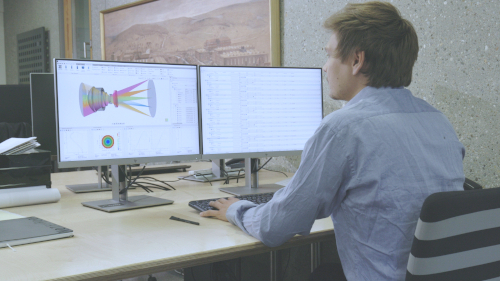
This 3-minute video creates spot diagram and PSF scripts with the Python Wizard and runs them without the user interface.
Video length: 2:58 min · Also on YouTube: Python Scripting Interface of QUADOA® Optical CAD
Frequently asked questions
Yes. The Python module calls the QUADOA® core library directly, so scripts run in any Python environment even when the program is closed.
Open the Python Wizard in the Setup tab, choose a template such as Spot Diagram or Point Spread Function, and save the script in the model folder.
Set the path to your Python installation in the global settings under Python, and save the script in the folder of the model.
Yes. Save the template as a .qpyt file in the scripttemplates/python folder of the installation; the placeholder ::LOAD_MATERIALS_AND_INIT_MODEL:: is replaced with the model loading code.
The Scripting Interface toolbox (Python, MATLAB® and C++ SDK), which is not part of the basic license.