
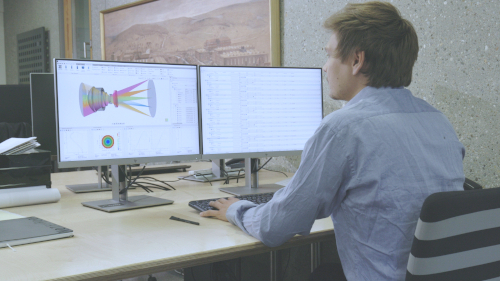


Auto Sequence in QUADOA® Optical CAD
The Auto Sequence is the default sequential ray trace in QUADOA® Optical CAD: the rays start at the first surface in the Optical Design Editor and pass every surface one by one, from top to bottom, until they reach the last surface. Every new model contains an Auto Sequence. It is the right choice for classical systems with one optical path, such as objectives, imaging optics or beam shaping, and it can be converted to a User Sequence whenever you need full control of the ray path.
Key points
- The Auto Sequence is the default sequence; every new file contains one.
- Rays run from the first to the last surface of the Optical Design Editor, top to bottom.
- At each surface the rays are transmitted, unless the coating reflects more than 50 % (then reflected).
- At surfaces with a phase function, the first diffraction order is used.
- All sequences are listed in the System Setup Editor under Sequences.
- For double passes, beam splitters or several paths, convert it to a User Sequence.
Terms used in this article
- Sequence
- The ordered path of surfaces that the rays are traced through, together with the source settings.
- System Setup Editor
- The editor for environment, sequences, optimization, tolerancing, plots and reports.
- User Sequence
- A sequence with a freely defined surface list and surface actions.
Where is the sequence defined?
- Click the Windows icon at the top and open the System Setup Editor.
- Expand the Sequences container. The first entry is the Auto Sequence.
The System Setup Editor holds all settings related to sequences and ray tracing, such as source type, wavelengths and fields; see ray tracing and sequence settings.
Which path do the rays take?
The Auto Sequence follows the order of the Optical Design Editor. In the example of the video:
- Source surface (first surface)
- Surface 1 of lens 1, surface 2 of lens 1, and so on through all lenses
- Imaging surface (last surface)
To change the order in which the rays meet the surfaces, change the order of the elements in the Optical Design Editor by drag and drop.
What does the Auto Sequence do at each surface?
| Surface | Action of the Auto Sequence |
|---|---|
| Uncoated surface | Transmission (reflection and transmission losses from the Fresnel equations) |
| Coating with more than 50 % reflectance, e.g. a mirror | Reflection |
| Surface with a phase function | First diffraction order |
| Surface with several polarization elements | Element chosen by its Surface Action setting |
| Space between two elements | Air at the temperature and pressure of the environment |
Auto Sequence or User Sequence?
The Auto Sequence is ideal when only one optical path is of interest and there are no beam splitters or double passes. To change its default behavior, for example to reflect at an uncoated surface, trace a surface twice or select a diffraction order, convert it to a User Sequence: right-click the Auto Sequence and choose Convert to User Sequence, or use To User Sequence in the Sequence tab. See User Sequence.
New sequences are added with New Auto Sequence or New User Sequence in the Sequence tab or with a right-click on Sequences. A model can contain any number of sequences, which is the basis of multi-sequential ray tracing.
Video tutorial: the Auto Sequence
This 2-minute video shows where the Auto Sequence is defined and how it traces rays through a system with several lenses.
Video length: 2:21 min · Also on YouTube: Auto Sequence in QUADOA® Optical CAD: How Rays Are Traced by Default
Frequently asked questions
The default sequential ray trace: rays start at the first surface of the Optical Design Editor and pass every surface from top to bottom until the last surface. Every new model contains one.
In the System Setup Editor under Sequences. Open the System Setup Editor with the Windows icon at the top.
Yes. If a surface has a coating with a reflectance above 50 %, such as a mirror coating, the Auto Sequence reflects the rays there; otherwise it transmits them.
When the system has several light paths, double passes or beam splitters, or when you need to choose reflection, diffraction order or polarization element per surface. Convert the Auto Sequence with a right-click.