


Install or update a QUADOA single software license
A QUADOA single software license is tied to one computer. You create a C2V file that identifies the computer and send it to QUADOA. Then you install the V2C file you receive back.
Key points
- The license is tied to this computer only and cannot be used on any other device.
- Install the full version of QUADOA Optical CAD, not the 45-day free trial.
- Step A: create a C2V (Customer to Vendor) file in the ACC and e-mail it to info@quadoa.com.
- Step B: install the V2C (Vendor to Customer) file from QUADOA under Update/Attach on the same computer.
Step A: Create the C2V file
The C2V file (Customer to Vendor) collects status information from your computer so that QUADOA can issue your license.
- Download the full version: Download the full version of QUADOA Optical CAD from www.quadoa.com/download. Do not download the 45-day free trial.
- Install QUADOA Optical CAD: Run the installer on this computer and follow the setup wizard.
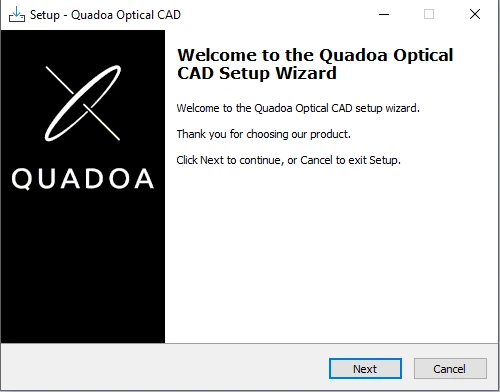
QUADOA Optical CAD setup wizard. - Open the Sentinel Admin Control Center: Open the Sentinel Admin Control Center (ACC) in your web browser at http://localhost:1947/. The ACC runs locally on the computer; this address does not open an external website.
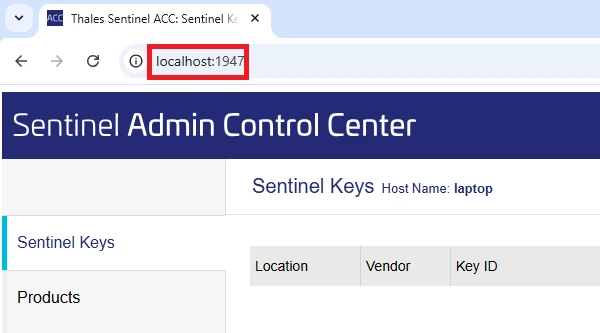
The Sentinel Admin Control Center at localhost:1947. - Create the fingerprint file: Open the Sentinel Keys tab.
- Find the entry with Vendor ID 91313 and Location Local.
- In this row, click Fingerprint on the far right under Actions to create a Fingerprint C2V file. If a QUADOA license is already installed, the button is called C2V instead.

Sentinel Keys tab with the Fingerprint action. - Send the file to QUADOA: Save the C2V file and e-mail it to info@quadoa.com or to your QUADOA representative.
- Wait for the V2C file: QUADOA sends you a V2C file. Once you have received it, continue with Step B.
Step B: Install the V2C file
- Open the Sentinel Admin Control Center: Open the Sentinel Admin Control Center (ACC) in your web browser at http://localhost:1947/. The ACC runs locally on the computer; this address does not open an external website.
- Select the V2C file: Open the Update/Attach tab and select the V2C file provided by QUADOA.
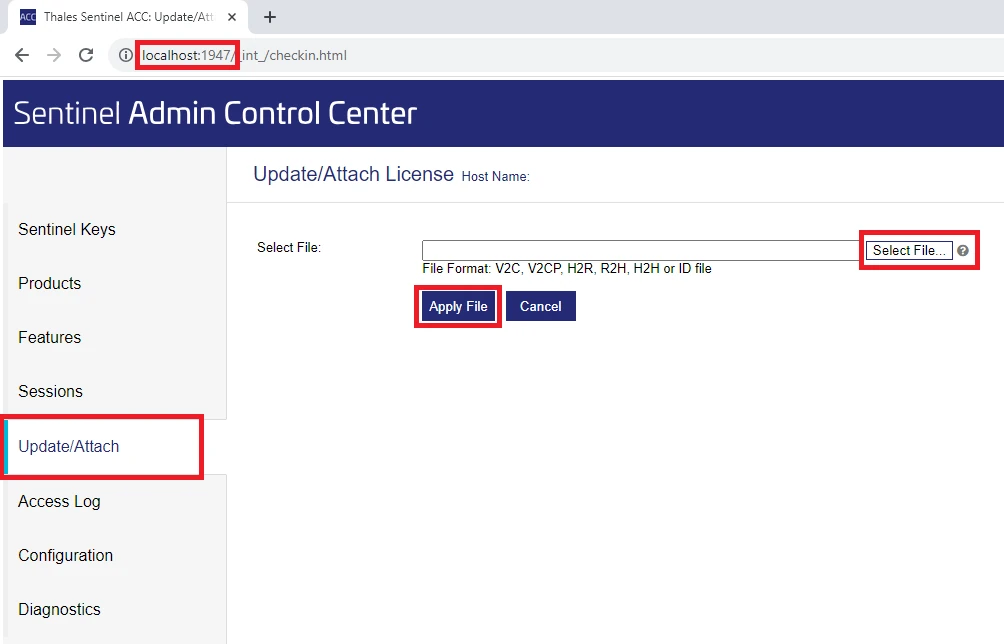
Update/Attach tab of the ACC. - Apply the file: Click Apply File to install or update the QUADOA license. A confirmation message appears when it was successful.
- Start QUADOA Optical CAD: You can now run QUADOA Optical CAD.
Frequently asked questions
No. A single software license is tied to the computer on which the C2V file was created and cannot be used on any other device.
A C2V file (Customer to Vendor) contains status information about the computer, created in the Sentinel Admin Control Center. QUADOA uses it to create a V2C file (Vendor to Customer), which installs or updates the license.
A QUADOA license is already installed on this computer. Click C2V to create the file for the update.