

Activate a QUADOA Optical CAD cloud license
A QUADOA cloud license is activated by entering your license key in the Sentinel Admin Control Center on your computer. The license is then retrieved from the QUADOA cloud license server within a few seconds. Setup takes about 5 minutes.
Key points
- You need the QUADOA license key provided by QUADOA and an internet connection.
- Install the full version of QUADOA Optical CAD, not the 45-day free trial.
- Enter the license key in the ACC under Configuration → Access to Remote License Managers.
- Port 80 and/or 1947 must not be blocked. In company networks a proxy server may need to be set.
- The same key can be activated on several of your devices, but used on one device at a time.
Activate the cloud license
- Download the full version: Download the full version of QUADOA Optical CAD from www.quadoa.com/download. Do not download the 45-day free trial.
- Install QUADOA Optical CAD: Run the installer on your computer and follow the setup wizard.
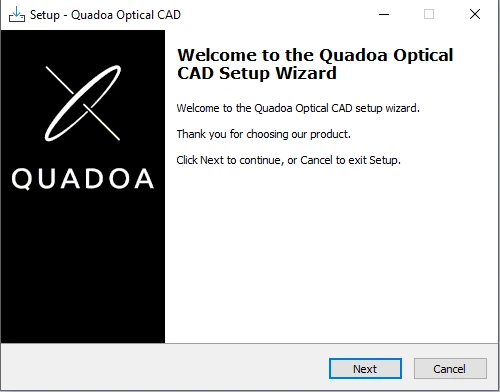
QUADOA Optical CAD setup wizard. - Open the Sentinel Admin Control Center: Open the Sentinel Admin Control Center (ACC) in your web browser at http://localhost:1947/. The ACC runs locally on the computer; this address does not open an external website.
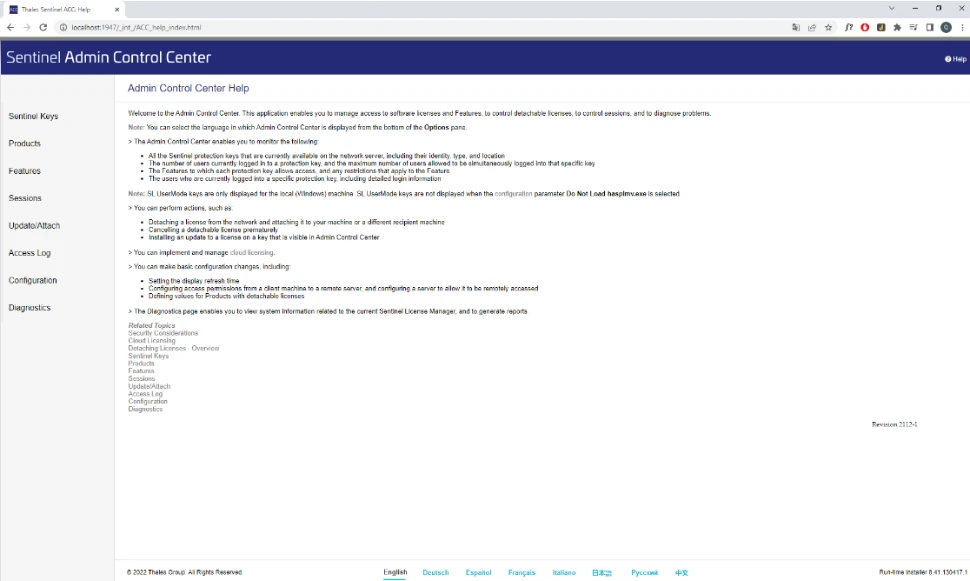
Start page of the Sentinel Admin Control Center. - Open the remote license settings: Click Configuration, then open the Access to Remote License Managers tab.
- Allow remote licenses: Select Allow Access to Remote Licenses and Broadcast Search for Remote Licenses.
- Enter your license key: Paste your QUADOA license key into the Remote License Search Parameters field, exactly as received and without extra spaces.
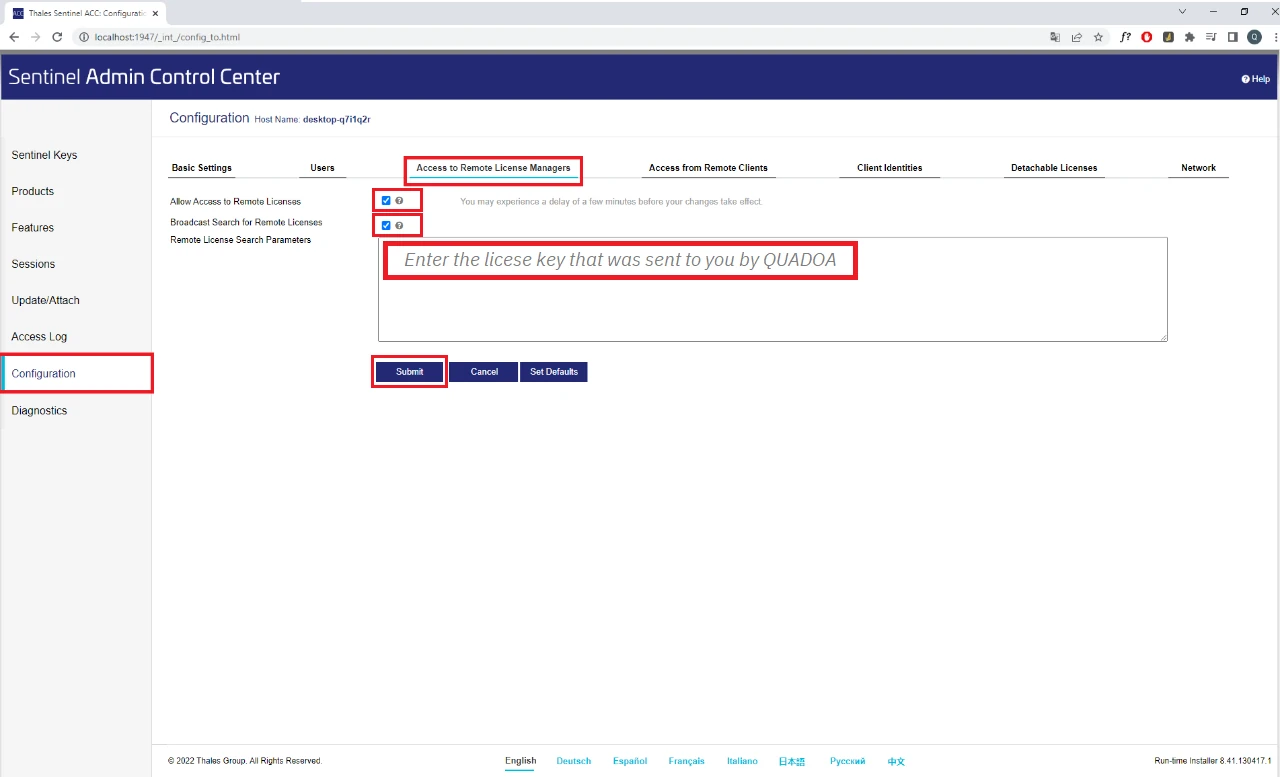
Remote license settings with the license key entered. - Save: Click Submit. The cloud license is activated within a few seconds.
- Start QUADOA Optical CAD: If the program opens without a license message, the setup is complete.
Troubleshooting
Company networks often block the connection to the license server. Use the table to find the likely cause.
| Symptom | What to check |
|---|---|
| No license found right after clicking Submit | Check that the license key was pasted completely and without extra spaces. Check that port 80 and/or 1947 is not blocked. See below. |
| Works on one network but not on another | The network blocks the required ports 80/1947 or uses a proxy server. See below. |
| Another device is already using the license | The license can be used on one device at a time. Close QUADOA Optical CAD on the other device. |
Firewall and ports
The Sentinel license service communicates via TCP and UDP on port 80 and/or port 1947. Port 1947 is registered with IANA specifically for this purpose. At least one of these ports must be open in your firewall and router settings. If both are blocked, ask your IT department to open them.
Proxy server
If the computer is in a company network that uses a proxy server, the proxy must be entered in the Sentinel Admin Control Center. Without it, the license client cannot reach the license server. Your IT department can provide the proxy address, port and login details.
- Open the network settings: In the ACC, click Configuration and open the Network tab.
- Select manual proxy settings: Under Proxy Setting, select Manual.
- Enter the proxy details: Enter the proxy address, port and, if required, username and password.
- Save: Click Submit to save the proxy settings, then restart QUADOA Optical CAD.
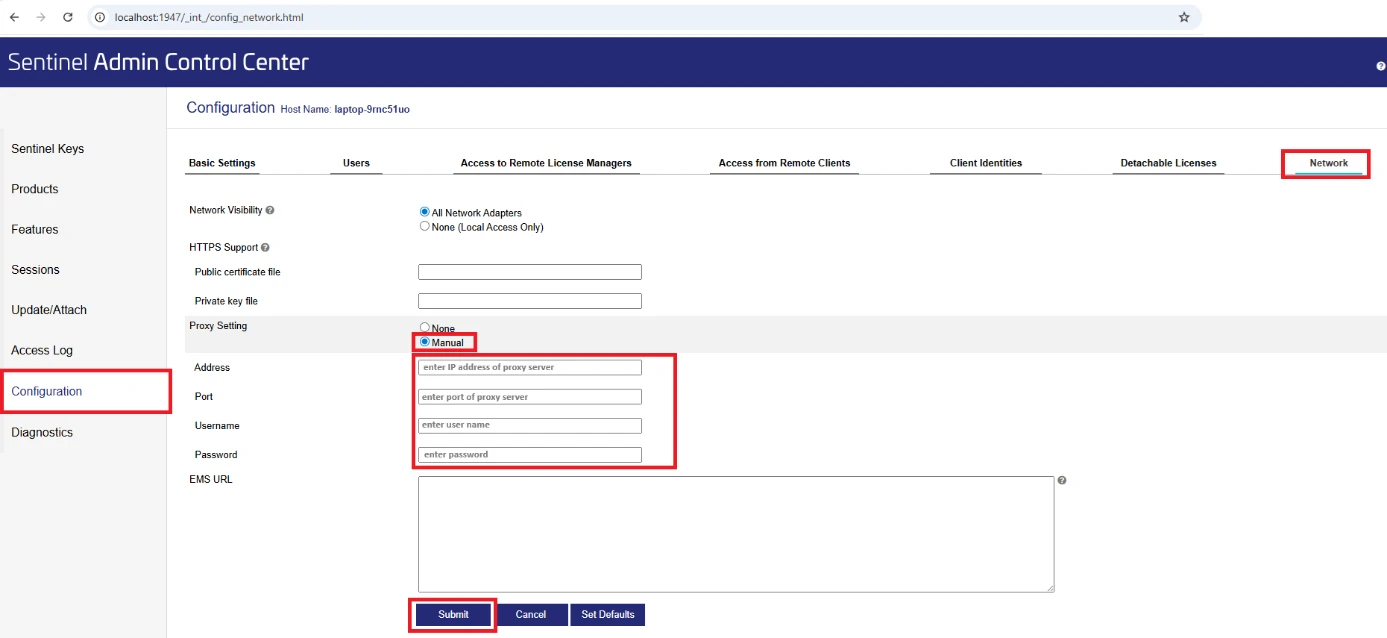
Proxy server settings in the Network tab of the ACC.
Several devices and privacy
- Several devices: with a cloud-based network license or a cloud-based evaluation license, you can activate the same license key on several of your devices, for example your office workstation and your home computer. Repeat the steps on each device. The license can be used on one device at a time.
- Privacy: all personal data is stored locally on your computer. Only the QUADOA license key is stored on the cloud server.
Frequently asked questions
Yes. With a cloud-based network license or a cloud-based evaluation license, you can activate the same license key on several of your devices, for example in the office and at home. The license can be used on one device at a time.
No. Download and install the full version of QUADOA Optical CAD from www.quadoa.com/download; only the full version is activated with your cloud license key.
The Sentinel license service communicates via TCP and UDP on port 80 and/or port 1947. At least one of these ports must not be blocked by your firewall or router.
Only the QUADOA license key. All personal data stays on your computer.