


Install or update a QUADOA network software license on the server
A QUADOA network software license is installed in two parts on the license server. First you create a C2V file that identifies the server and send it to QUADOA. Then you install the V2C file you receive back and allow the client computers to access the license.
Key points
- Perform all steps on the server where the QUADOA license will be installed.
- Step A: create a C2V (Customer to Vendor) file in the ACC and e-mail it to info@quadoa.com.
- Step B: install the V2C (Vendor to Customer) file from QUADOA under Update/Attach.
- Allow access from remote clients and make sure port 1947 is not blocked.
- Then set up the client computers with the client guide.
Step A: Create the C2V file
The C2V file (Customer to Vendor) collects status information from the server so that QUADOA can issue your license.
- Install the Sentinel runtime (first installation only): Server with a graphical user interface (GUI): install the full version of QUADOA Optical CAD from www.quadoa.com/download. The QUADOA setup installs the Sentinel runtime automatically.
Server without a GUI: download the Sentinel Quadoa Runtime Vendor Library from www.quadoa.com/download. On Windows, open the Command Prompt and run:
C:\PATH_TO_FILE\haspdinst_91313.exe -iReplace
C:\PATH_TO_FILEwith the folder that contains haspdinst_91313.exe. On Linux, follow the instructions in the Readme file in the download folder.Skip this step if a QUADOA license is already installed on this server.
- Open the Sentinel Admin Control Center: Open the Sentinel Admin Control Center (ACC) in your web browser at http://localhost:1947/. The ACC runs locally on the computer; this address does not open an external website.
- Create the fingerprint file: Open the Sentinel Keys tab.
- Find the entry with Vendor ID 91313 and Location Local.
- In this row, click Fingerprint on the far right under Actions to create a Fingerprint C2V file. If a QUADOA license is already installed, the button is called C2V instead.
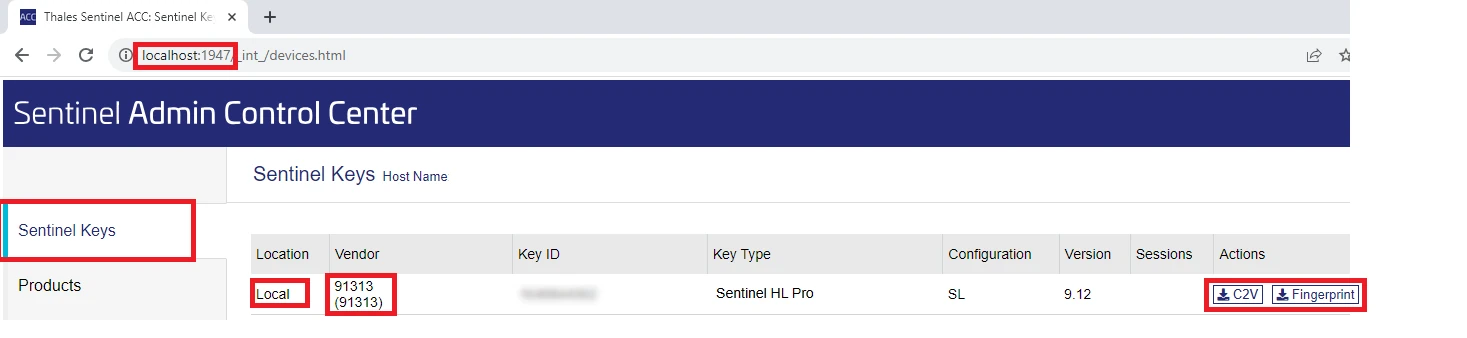
Sentinel Keys tab with the Fingerprint and C2V actions. - Send the file to QUADOA: Save the C2V file and e-mail it to info@quadoa.com or to your QUADOA representative.
- Wait for the V2C file: QUADOA sends you a V2C file. Once you have received it, continue with Step B.
Step B: Install the V2C file
- Open the Sentinel Admin Control Center: Open the Sentinel Admin Control Center (ACC) in your web browser at http://localhost:1947/. The ACC runs locally on the computer; this address does not open an external website.
- Select the V2C file: Open the Update/Attach tab and select the V2C file provided by QUADOA.
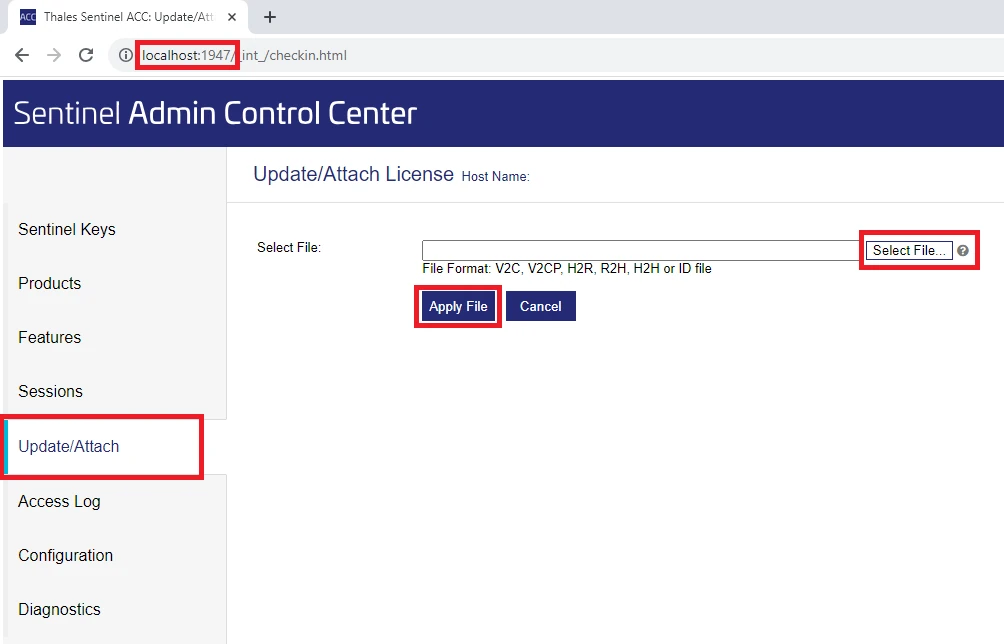
Update/Attach tab of the ACC. - Apply the file: Click Apply File to install or update the QUADOA license on the server. A confirmation message appears when it was successful.
- Allow access from remote clients: Click Configuration and open the Access from Remote Clients tab.
- Under Allow Access from Remote Clients, select All licenses are accessible without need of identity.
- Click Submit to save your settings.
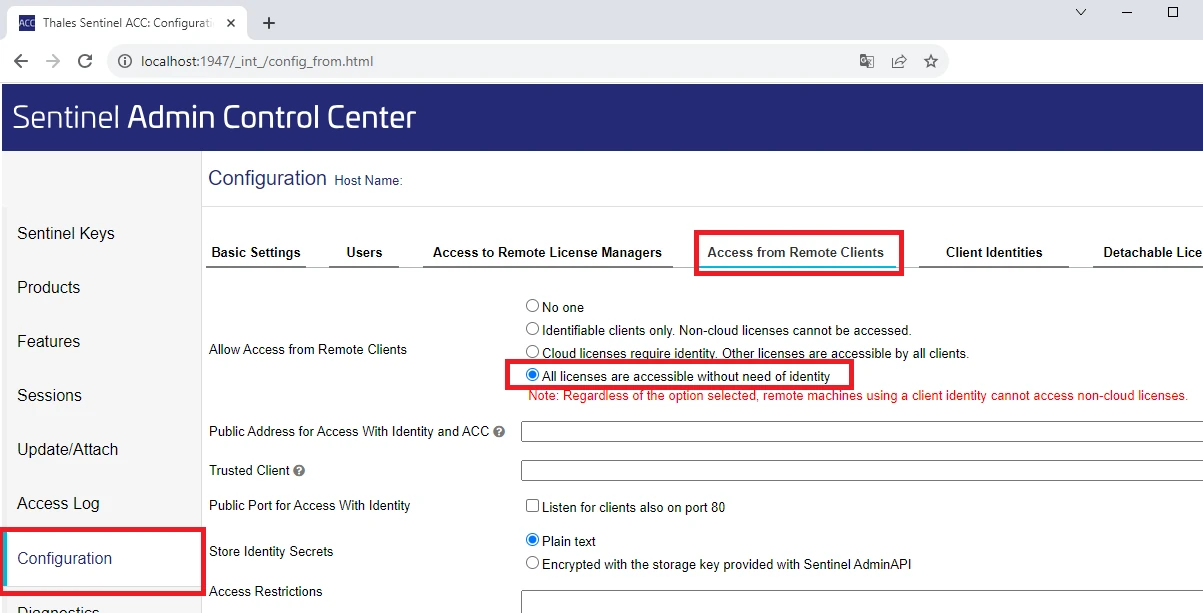
Access from Remote Clients tab. - Check the firewall: The Sentinel license service communicates via TCP and UDP on port 1947, which is registered with IANA for this purpose. Make sure your firewall and network settings do not block port 1947.
- Set up the client computers: The server installation is complete. Now install QUADOA on the client computers as described in Install a network license on a client computer.
Frequently asked questions
A C2V file (Customer to Vendor) contains status information about the computer or license, created in the Sentinel Admin Control Center. QUADOA uses it to create a V2C file (Vendor to Customer), which installs or updates the license.
E-mail it to info@quadoa.com or to your personal QUADOA representative.
The Sentinel license service communicates via TCP and UDP on port 1947. Make sure your firewall does not block it.
No. The Sentinel Quadoa Runtime Vendor Library is only required if no QUADOA license is installed on the server yet.