


Connect an AI assistant to QUADOA Optical CAD (MCP server)
QUADOA includes an MCP server (Model Context Protocol) that connects AI assistants to the QUADOA core. The assistant can then load models, trace rays, run analyses and optimize optical systems. Setup only takes a few minutes.
Key points
- More than 300 tools of the QUADOA core: load models, trace rays, build merit functions, optimize, compute MTF and PSF, generate ghosts, import and export, insert or split lenses and more.
- Tools, not text: the assistant does not guess numbers, it calls QUADOA and works with real ray trace results.
- Works with Claude, ChatGPT, Gemini, Copilot and other MCP-capable assistants, as well as local models such as Gemma or Qwen.
- QUADOA has no internet connection, no cloud and no built-in AI. Your optical design stays on your local machine and QUADOA shares no IP with any cloud.
- Requires a valid Scripting Toolbox licence. Setup instructions are in QUADOA under Help → MCP.
What is the QUADOA MCP server?
MCP, the Model Context Protocol, lets an AI assistant use software tools instead of only writing text. It is an open standard, introduced by Anthropic in 2024 and now hosted by the Linux Foundation: one connector for many AI applications.
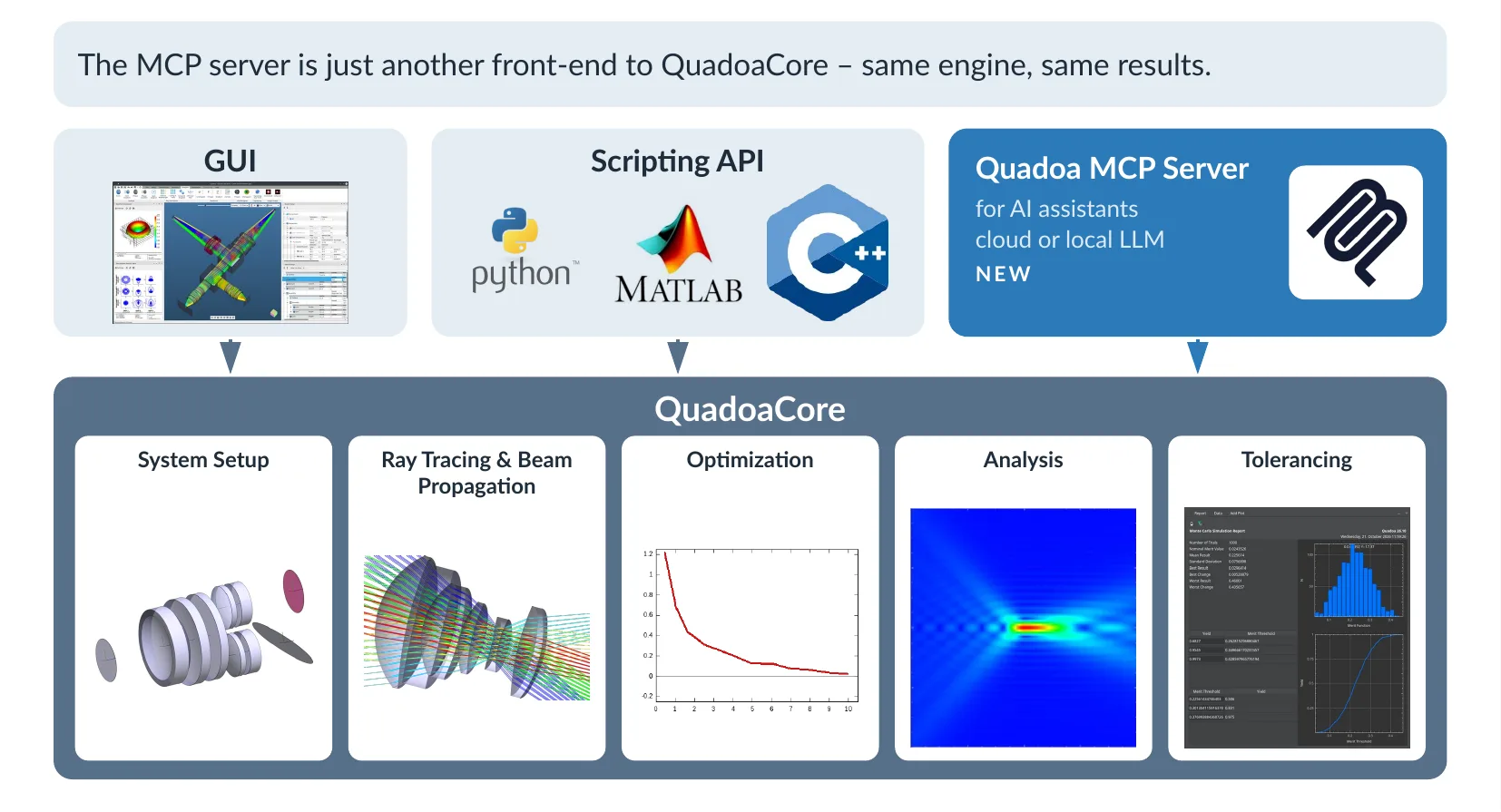
All calculations in QUADOA take place in the QUADOA core library, which is separate from the graphical user interface. The user interface is simply one of several ways to access the algorithms contained in the core library. The same core library can also be used via the Python, MATLAB® and C++ API, and the MCP server is another front end to it: same engine, same results.
How it works
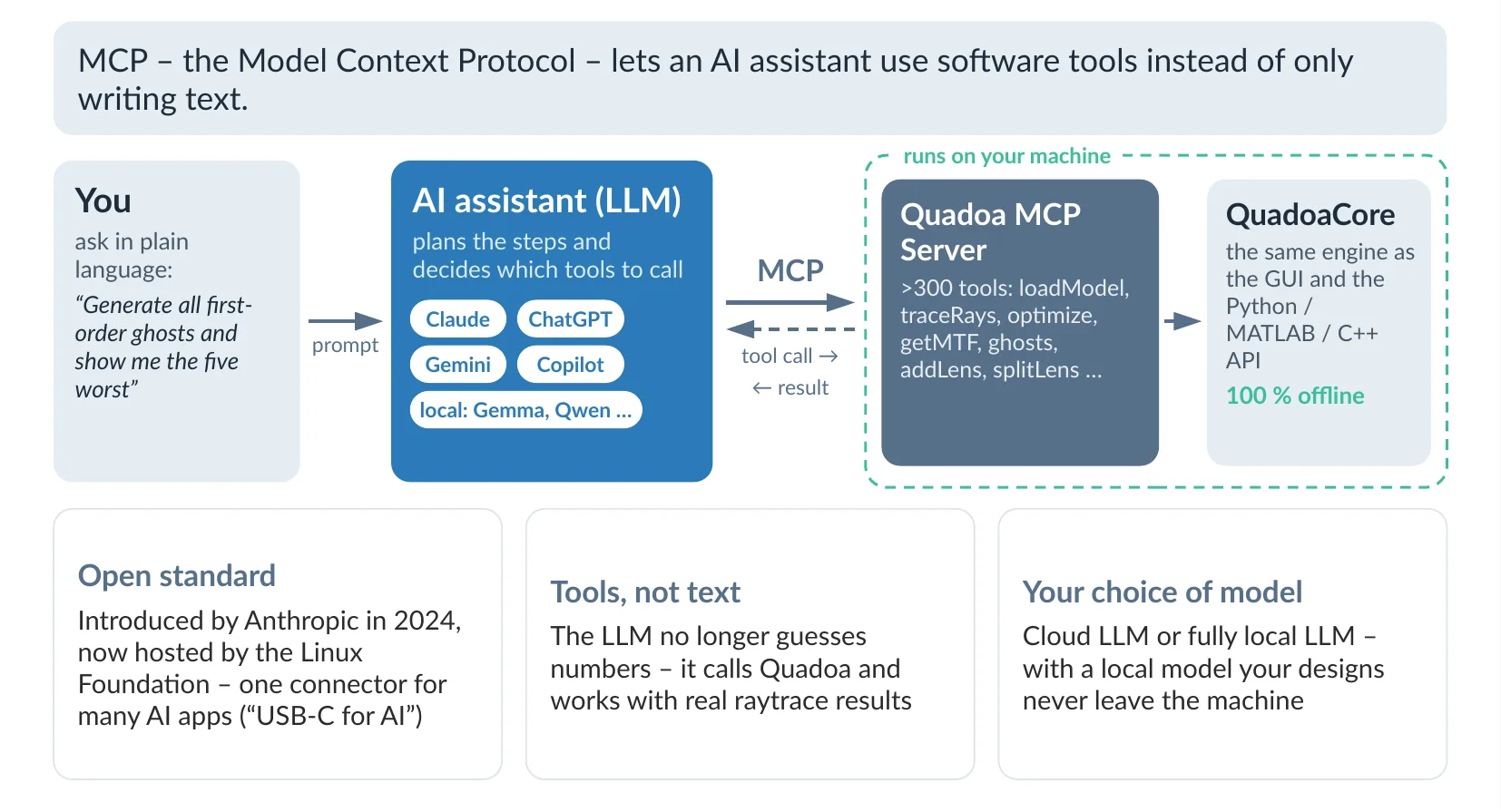
- You ask in plain language, for example: “Generate all first-order ghosts and show me the five worst.”
- The AI assistant plans the steps and decides which tools to call.
- The QUADOA MCP server receives the tool calls and passes them to the QUADOA core, for example
loadModel,traceRays,optimize,getMTForsplitLens. - The QUADOA core calculates and returns real results, which the assistant uses for its next step or its answer.
We extend the MCP server regularly with new tools.
Why it is useful
- Automate without writing scripts: compare design variants, collect results from many files or repeat routine tasks in a conversation instead of a Python script.
- From conversation to script: once a workflow works, the assistant can turn it into a reusable Python script that runs without AI.
- Quick setup: Python is included in the QUADOA installer, so nothing else needs to be installed.
Privacy and confidential designs
QUADOA itself has no internet connection, no cloud functions and no built-in AI. The MCP server is a separate program that runs on your computer and is only started by the AI client you configure. What leaves your computer depends on the assistant you connect:
- Cloud-based assistants: the information the assistant reads and writes during the chat, such as lens data or analysis results, is processed by the provider of the assistant, according to its terms.
- Local models: if the language model runs on your own computer or in your own network, the whole chat stays offline. This is the right choice for confidential designs.
Requirements and setup
You need QUADOA Optical CAD v26.10.1 or later, a valid Scripting Toolbox licence on this computer and an MCP client, for example Claude Desktop, VS Code or Cursor.
- In QUADOA, open Help → MCP. The configuration shown there already contains the correct paths of your installation.
- Copy it into the MCP configuration of your client, as described in Help → MCP.
- Restart the client completely. The QUADOA tools then appear in its tools menu.
For orientation, a configuration looks like this. It is only an example: the paths depend on your installation, so please always copy the configuration from Help → MCP.
{
  "mcpServers": {
    "quadoa": {
      "command": "C:\\Program Files\\Quadoa_v26.10.1\\python.exe",
      "args": ["C:\\Program Files\\Quadoa_v26.10.1\\MCP\\quadoa_mcp_server.py"]
    }
  }
}
Connect via HTTP
For clients that connect to a URL instead of starting a program, start the server in a command prompt and keep the window open:
"C:\Program Files\Quadoa_v26.10.1\python.exe" "C:\Program Files\Quadoa_v26.10.1\MCP\quadoa_mcp_server.py" --http --port 8000The client then connects to http://127.0.0.1:8000/mcp.
What you can ask the assistant
Some typical requests and the QUADOA tools the assistant calls for them:
| Request | Tools called |
|---|---|
| “Import this ZMX file and give me EFL, F/#, and the Seidel aberrations per surface.” | importZMXModel · getEffectiveFocalLength · getSeidelCoefficientForSurface |
| “Generate all first-order ghosts and list the five with the highest irradiance on the sensor.” | generateGhostSequences · sortGhostsByIntensityPerSpotSize |
| “Insert a doublet behind the stop, make the radii variable and optimize for minimum spot size.” | insertDoublet · setSurfaceRadiusOfCurvatureVariableState · optimizeLocalSync |
| “Search online for a patent lens which is closest to the following specs and build it in QUADOA as a start system.” | newModelFile · insertSinglet · addMeritFunction · addRaytraceTarget · addGlobalTarget · optimizeLocalSync |
| “Export the lenses as STL for the mechanics team and the design as CODE V for our customer.” | exportCADSTL · exportSequenceAsCodeV |
| “Now write me a Python script that does the same for every lens file in this folder.” | turns the conversation into a reusable script |
Two real examples
“Draw this lens”
Prompt: Please open the Double Gauss model, load the SCHOTT catalog and trace the rays. Then draw a 2D image of the optical system in the style of an ISO 10110 drawing, including the rays from the trace. The assistant loads the catalog and the model, traces the rays, reads the geometry from QUADOA and creates a drawing with the surface table.
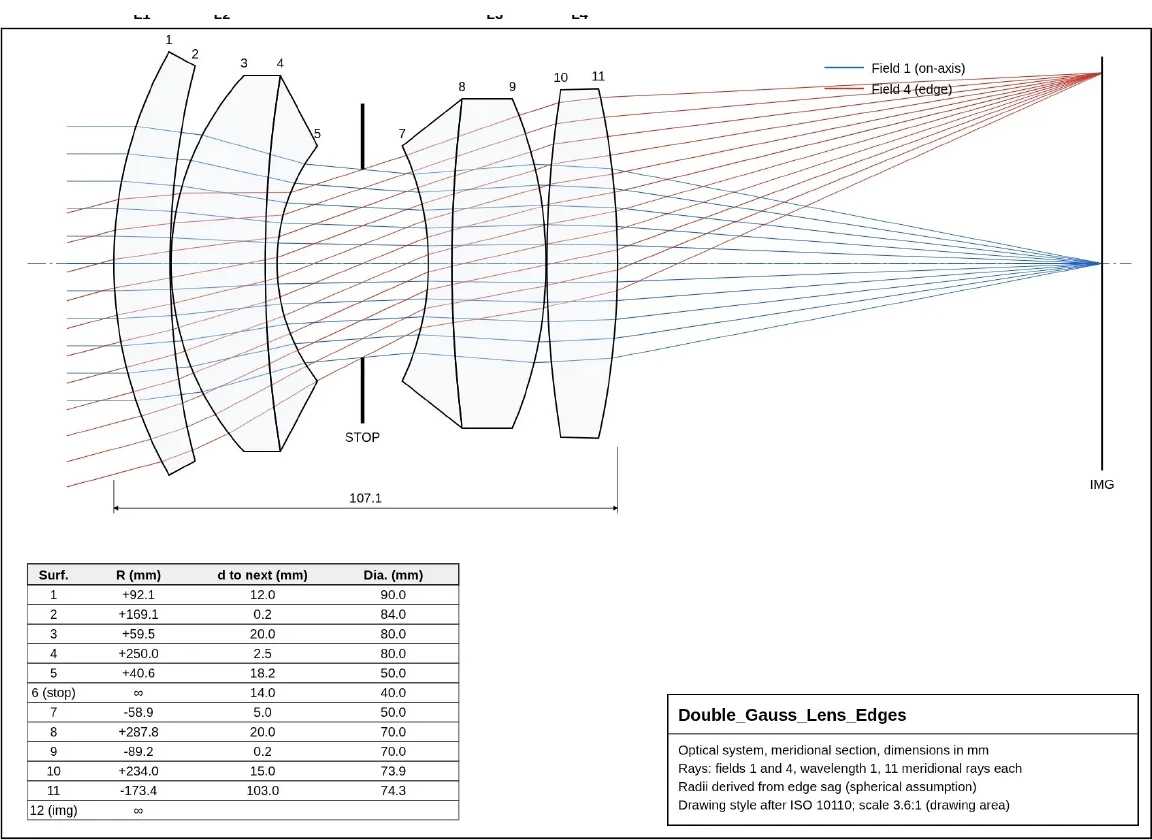
Turned into a Python script, the same workflow draws any lens without an AI assistant, for example a microscope objective.
“Build a start system from a patent lens”
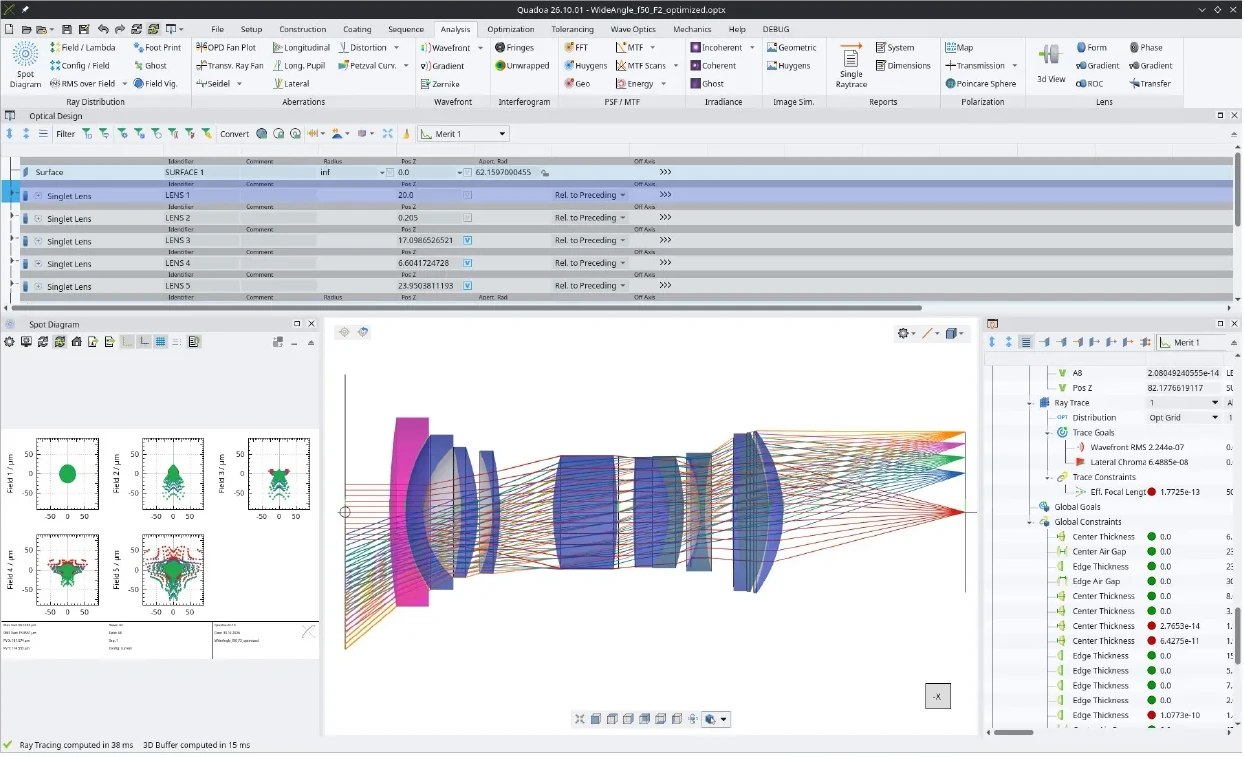
Prompt: I want to design a lens with f/2, 50 mm focal length, visible wavelength range and a full field of view of ±40°, diffraction limited. Search online for a close patent design, re-optimize it in QUADOA using the MCP server and save the final design.
The assistant found a close patent example, scaled it to f = 50 mm and built it in QUADOA. It then optimized radii, thicknesses and air gaps with edge thickness constraints and added glass and asphere freedom. The result meets focal length, f-number and field and reduces the polychromatic RMS wavefront error from about 8 to about 0.8 waves. It is not yet diffraction limited, and the assistant said so clearly: the specification is very demanding for f/2 over an 84 mm image circle.
Frequently asked questions
An MCP server (Model Context Protocol) that gives AI assistants access to the QUADOA core, so they can load models, trace rays, run analyses and optimize optical systems.
No. QUADOA has no internet connection, no cloud functions and no built-in AI; your design stays on your computer. With a cloud-based assistant, what the assistant reads during the chat is processed by its provider. With a local model, the whole chat stays offline.
A valid QUADOA Scripting Toolbox licence on the computer that runs the MCP server.
Every assistant that supports MCP, for example Claude, ChatGPT, Gemini or Copilot, in clients such as Claude Desktop, VS Code or Cursor, as well as local models such as Gemma or Qwen.